
Multimedia-based social platforms have changed every aspect of our lives, and videos are at the center of this revolution. People are no longer interested in lengthy texts, even for reviewing news.
The thing is that creating attractive videos needs time, staff, money, and professional cameras. This is not affordable for many businesses, which makes them lose the market to bigger players.
Fortunately, AI can solve this problem by allowing everyone to create realistic videos without any tools.
You just need a strong AI video editor tool and some great ideas to generate videos that get millions of views.
In this blog post, we’ll introduce the top 20 AI video editors to help SMBs grow their businesses.
What to Look for When Choosing an AI Video Editor
Choosing the right AI video editor can make a huge difference in productivity, creativity, and final output quality.
Remember that there are so many options on the market, and if you don’t have a clear list of factors for selection, you might waste your time and money.
Here are the most important factors to consider before choosing an AI tool:
1. Purpose & Workflow
Different AI video editors cater to different use cases. Ask yourself:
- Are you creating short-form social content, long-form tutorials, or professional cinematic videos?
- Do you need spoken-word editing, screen recordings, or AI-generated avatars? Understanding your primary workflow will help you pick a tool tailored to your needs.
2. AI Features
AI capabilities vary widely. Key features to evaluate include:
- Auto-cut & filler word removal: Speeds up editing for dialogue-heavy content.
- Text-to-video or script-based editing: Converts written scripts into videos automatically.
- Voice cloning & text-to-speech: For dubbing or generating narration.
- Generative video tools: AI-based background replacement, style transfer, or video extension.
Check that the AI features align with your content style and production needs.
3. Ease of Use & Learning Curve
Some tools like Canva Video or CapCut are highly intuitive, perfect for beginners or quick social media projects. Professional editors like Premiere Pro or DaVinci Resolve offer depth and precision but may require more training. Consider how much time you’re willing to invest in learning the software.
4. Platform & Compatibility
Ensure the editor is compatible with your device and operating system:
- Desktop vs. browser-based vs. mobile apps
- Windows, Mac, or cross-platform support
- Hardware requirements (especially for AI processing) can impact performance.
5. Collaboration & Cloud Features
For teams or multiple contributors, check whether the editor supports:
- Real-time collaboration and commenting
- Cloud-based storage and project sharing
- Version control and multi-user access
6. Export & Format Options
Look at the formats and resolutions supported:
- Full HD, 4K, or social media optimized formats (vertical, square)
- Ability to export for multiple platforms directly
- API or automation options for batch content production
7. Pricing & Scalability
AI video editors often use tiered or credit-based pricing. Consider:
- Free trials or free versions for testing
- Subscription vs. one-time purchase models
- Limits on AI usage, export minutes, or watermarks
- Scalability for team or enterprise needs
8. Support & Community
Finally, a strong support system and active community can save hours of frustration. Check for:
- Tutorials, documentation, and FAQs
- Active user forums or social media groups
- Customer support responsiveness
🎬 AI Tools for Professional & Long-Form Video Editing
If you’re a professional filmmaker, you’d better go for advanced tools. YouTubers and editors need advanced features and can’t use any free AI editor tool.
Here is a list of top professional AI-powered video editing tools that enable you to create long-form videos.
1. Adobe Premiere Pro
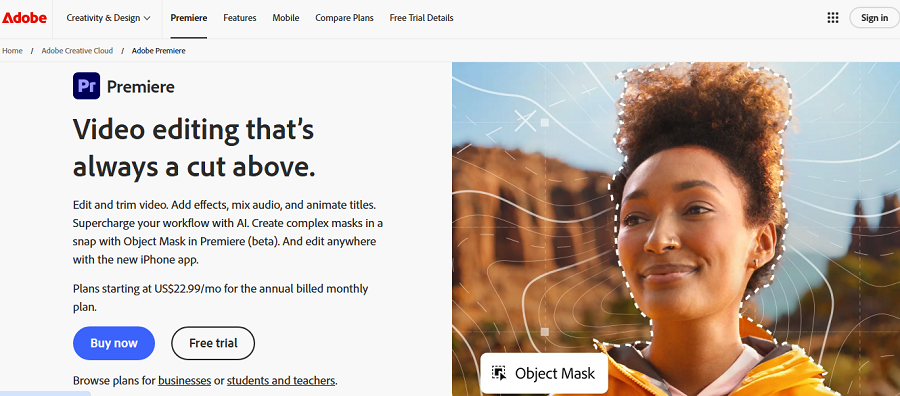
Adobe is a famous company in the realm of photo and video editing tools. Adobe Premiere Pro is a professional‑grade timeline‑based video editor released by this company. It is widely used in film, broadcast, and digital content creation.
It combines traditional editing tools with AI‑powered features (via Adobe Sensei/Firefly) to automate time‑consuming tasks such as transcript‑based editing, caption translation, object masking, and generative video extension.
Features of Adobe Premiere Pro
- Timeline Editing: Edit footage via traditional track‑based interface, keyframes, nested sequences, and multicam.
- AI Scene Edit Detection: Automatically detect cuts in long takes and split into editable clips.
- Speech‑to‑Text & Captions: Generate transcripts, auto‑captions, and translate into multiple languages.
- Enhance Speech (AI Audio Cleanup): Use AI to clean up dialogue tracks, remove background noise, and improve clarity.
- Generative Extend (Firefly): Extend video backgrounds or ambient audio using generative AI without reshooting.
- Auto Reframe & Smart Format: Automatically adjust aspect ratio (e.g., vertical, square) and reframe for social outputs.
- AI‑Powered Search & Metadata: Search footage by content (objects, scenes, people) using AI.
- Color Grading & Advanced Effects Integration: Includes Lumetri color tools, VFX integration with After Effects, and other suites.
- Cloud Sync & Collaboration: Auto‑save to cloud, versioning, shared projects across team workflows.
Pricing of Adobe Premiere Pro
| Plan | Price (Monthly) | Year‑Billed Equivalent |
| Individual App (Premiere Pro) | ~$31.49/mo | ~$22.99/mo (annual) |
| Creative Cloud All Apps | ~$59.99/mo | ~$54.99/mo (annual) |
Pros of Adobe Premiere Pro
✅ Industry‑standard for professional video editing
✅ Highly capable AI features built into established workflow
✅ Excellent ecosystem (After Effects, Audition, stock assets)
Cons of Adobe Premiere Pro
❌ Subscription cost can be high for solo creators
❌ Steep learning curve for beginners
❌ Requires powerful hardware for smooth performance
2. DaVinci Resolve
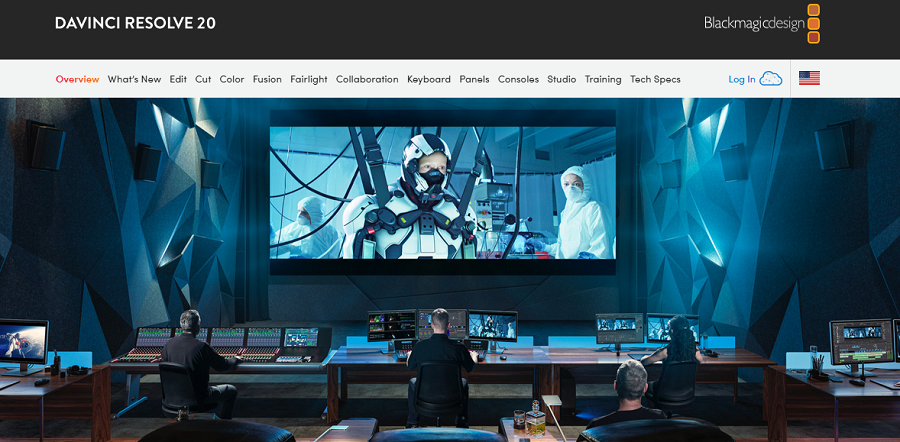
DaVinci Resolve by Blackmagic Design combines video editing, color grading, visual effects (Fusion), and audio post (Fairlight) into one application. Its “Neural Engine” introduces AI‑driven tools for scene detection, object removal, smart reframing, and speed warping, making it a powerful choice for those needing full creative control.
Features of DaVinci Resolve
- Non‑linear Editing Suite: Full track‑based editing, multicam, proxy workflows, and more.
- AI Scene Detection & Smart Cut: Detects scene changes and organizes long footage into manageable shots.
- Object Removal & Inpainting: Use AI to track and remove unwanted objects from video.
- Speed Warp & Optical Flow: Create smooth slow‑motion using AI interpolation.
- Color Grading (Node‑based) with AI Enhancements: Face recognition, smart masks, and matching shots.
- Fairlight Audio Tools: Full audio post capabilities, including ADR, noise reduction, and multitrack mixing.
- Collaboration/Multi‑User (Studio version): Shared timelines, locking, bin management for teams.
Pricing of DaVinci Resolve
| Plan | Price |
| DaVinci Resolve (Free) | $0 |
| DaVinci Resolve Studio | $295 (one‑time purchase) |
Pros of DaVinci Resolve
✅ Very strong free version with industry‑level tools
✅ Outstanding color grading and visual effect capabilities
✅ One‑time payment option (Studio) avoids subscription
Cons of DaVinci Resolve
❌ Advanced features require steep learning and a high‑end GPU
❌ Free version lacks some collaborative/team features found in Studio
3. Final Cut Pro
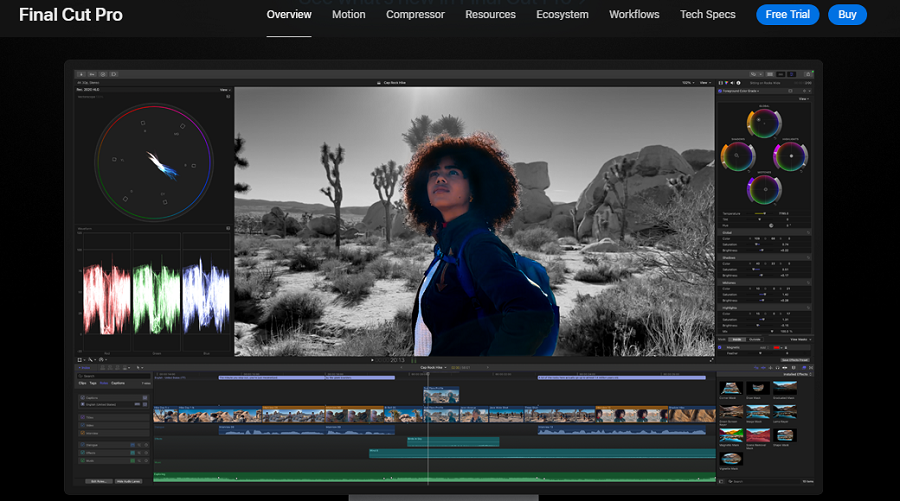
Final Cut Pro from Apple is a Mac/iPad‑native professional editor optimized for Apple Silicon. It offers high performance and a sleek, non‑linear editing interface. Recent versions include ML‑powered tools for object isolation and background masking, making it an excellent choice for Mac‑based creators.
Features of Final Cut Pro
- Magnetic Timeline & Trackless Editing: Streamlined editing flow unique to FCP.
- Hardware‑Accelerated Performance: Optimized for Apple Silicon (M‑series chips).
- Object Isolation & Machine Learning Masks: Use ML to isolate subjects/backgrounds.
- Multicam & Proxy Workflow: Efficient for large projects and mobile/desktop handoff.
- Motion & Compressor Integration: Seamless with Motion templates and Compressor exports.
- iPad Hand‑off Workflows: Start on desktop, continue on iPad or vice versa.
Pricing of Final Cut Pro
| Plan | Price |
| Final Cut Pro (one‑time) | ~$299.99 |
Pros of Final Cut Pro
✅ One‑time purchase (no ongoing subscription)
✅ Excellent performance on Mac/Apple Silicon
✅ Great for Mac‑native workflows
Cons of Final Cut Pro
❌ macOS/iPad only (no Windows support)
❌ Different workflow from other editors — may require re‑learning
4. Gling
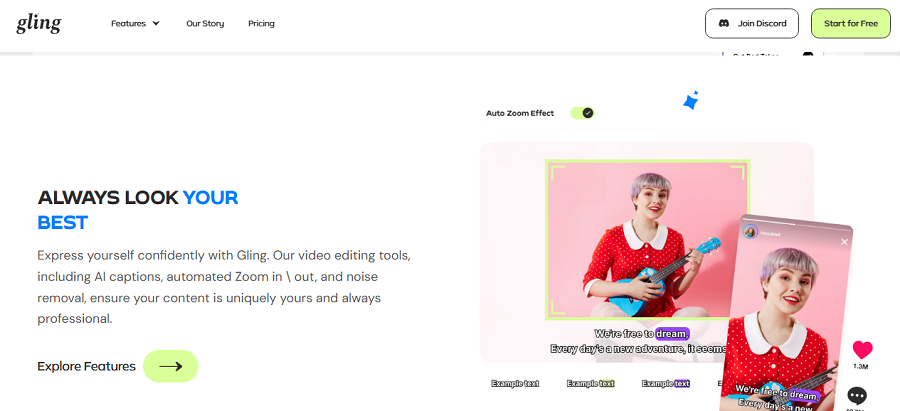
Gling is an AI‑first editor built for creators (especially on YouTube) who want to speed up rough cut workflows. It automates the removal of bad takes, silences, filler words, and does auto‑framing and captioning — aimed at solo editors wanting to streamline editing.
Features of Gling
- Auto Bad‑Take Removal: Detects and removes unusable segments automatically
- Silence & Filler‑Word Removal: Eliminates long pauses or filler (“um”, “uh”) to tighten pacing.
- Auto Zoom & Framing: AI adjusts framing to keep focus on the subject.
- AI Captions & Noise‑Removal: Generate captions automatically; clean audio background.
- Fast Timeline Assembly for YouTube/Shorts: Optimizes for long‑form to short content repurposing.
Pricing of Gling
| Plan | Price |
| Free | $0 (limited usage) |
| Plus | ~$10/mo (10 hours/month) |
| Pro | ~$20/mo (30 hours/month) |
| Enterprise | Custom |
Pros of Gling
✅ Dramatically speeds up editing for long‑form creators
✅ Focuses on spoken‑word workflows and clipping
✅ Affordable tier for solo creators
Cons of Gling
❌ Not a full‑featured NLE — fewer advanced VFX/graphics tools
❌ Storage/export limits may apply to budget tiers
5. Wondershare Filmora
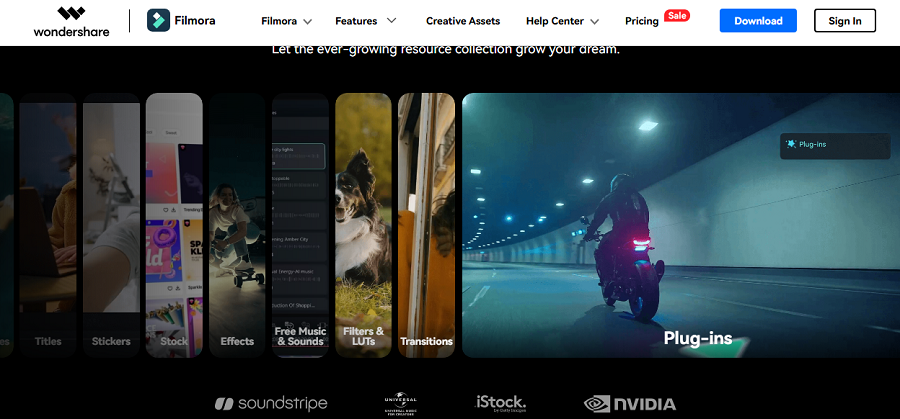
Wondershare Filmora targets beginner to intermediate creators who want an accessible editor with modern AI features. It supports desktop and mobile, and recent versions emphasize AI‑enhancements like text‑to‑video, auto‑cut, and templates for social content.
Features of Wondershare Filmora
- Smart Short Clips (Auto Highlights): Auto‑detects key moments and generates short segments.
- Text‑to‑Video Prompt Editing: Use text prompts to assemble scenes and clips.
- AI Video Enhancer / Color Palette Transfer: Improve low‑res footage or apply stylistic palettes.
- Auto Captioning & Voice‑to‑Text: Generate captions automatically; supports voiceover.
- AI Voice Cloning & Text‑to‑Speech: Clone voice or use TTS for narration.
- Large Template Library & Cloud Assets: Access pre‑built templates for promos/social.
- Cross‑Platform (Windows/Mac/Mobile): Use on desktop or mobile for on‑the‑go edits.
Pricing of Wondershare Filmora
| Plan | Price |
| Free | $0 (watermark) |
| Subscription / Annual | ~$9.99–$49.99/mo or ~$39–$69/yr (region‑dependent) |
Pros of Wondershare Filmora
✅ Very beginner‑friendly and strong for social creators
✅ Broad platform support (desktop + mobile)
✅ Lots of AI automations to speed up workflows
Cons of Wondershare Filmora
❌ Lacks the depth and flexibility of pro‑level editors
❌ Pricing tiers and feature sets vary by region — potential surprises
📲 Best Social Media & Creator-Friendly AI Video Tools
Social media is all about high-quality media. The thing is that creating natural videos is a time-consuming task and requires a lot of money, tools, and space.
AI video editors are here to solve this issue. Here is a list of top AI tools that help you create TikTok clips, Instagram Reels, and YouTube Shorts to increase your followers and earn more money:
6. CapCut
CapCut, developed by ByteDance, is a mobile + desktop editor popular with short‑form creators (TikTok, Reels). It includes AI features such as auto‑cut, captions, filters, trending templates, and exports that are mobile‑optimized.
Features of CapCut
- Auto‑Segment & Auto‑Cut: Automatically splits footage into clips optimized for social formats.
- Template Library & Trend Effects: Use trending templates and AI filters for fast creation.
- Auto Captions & Auto Speech Recognition: Generate captions automatically.
- Beauty/Retouch & Object Removal: AI‑driven beauty filters and quick object removal.
- 4K Export & Asset Library: On paid tiers, export 4K and access an expanded asset library.
- Mobile + Desktop Parity: Many features are available on both platforms for flexible editing.
Pricing of CapCut
| Plan | Price |
| Free | $0 (core tools, may include watermark) |
| Pro/Standard | ~$7.99–$19.99/mo (region‑dependent) |
Pros of CapCut
✅ Extremely fast for social‑video workflows
✅ Popular among short‑form creators with strong trend support
✅ Free tier accessible for mobile use
Cons of CapCut
❌ Some features/exports locked behind paywalls
❌ Regional legal/privacy issues may affect availability
7. Canva Video
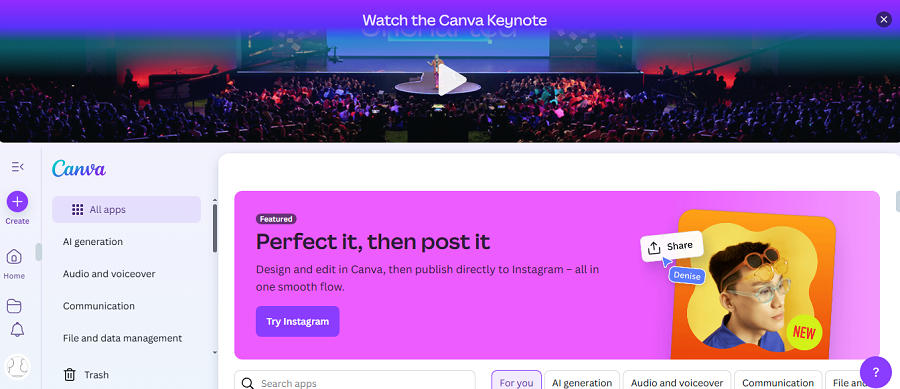
Canva Video is part of the Canva design platform, focused on quick video creation and editing via templates, drag‑and‑drop, and new AI features (e.g., “Create a Video Clip” via text prompt). It’s designed for marketing teams, social content, and non‑editors.
Features of Canva Video
- Template‑Driven Editing: Start with pre‑built layouts for social, presentations, or ads.
- Text‑to‑Video Clip Generation: Generate short clips from text prompts using AI (via Veo 3).
- Auto Captions & Translations: Add captions and translate videos into multiple languages.
- Brand Kit & Asset Library: Apply brand fonts, colors, and have access to stock video/images.
- Drag‑and‑Drop Timeline Editor: Simple timeline for trimming, transitions, and effects.
- Collaboration & Team Workflows: Share designs, co‑edit in real time, and comment.
- Export Presets for Social Platforms: One‑click exports for Instagram, TikTok, and YouTube.
Pricing of Canva Video
| Plan | Price |
| Free | $0 (basic features) |
| Pro | ~$12.99–$15/mo or ~$119–$120/yr per user |
| Teams/Enterprise | Custom |
Pros of Canva Video
✅ Extremely easy for non‑editors and teams
✅ Strong integration with design workflows and brand assets
✅ Good value for social‑video workflows and quick edits
Cons of Canva Video
❌ Not built for heavy VFX, complex timelines, or cinematic editing
❌ AI clip‑generation may have limitations (minute length, style)
8. VEED.io
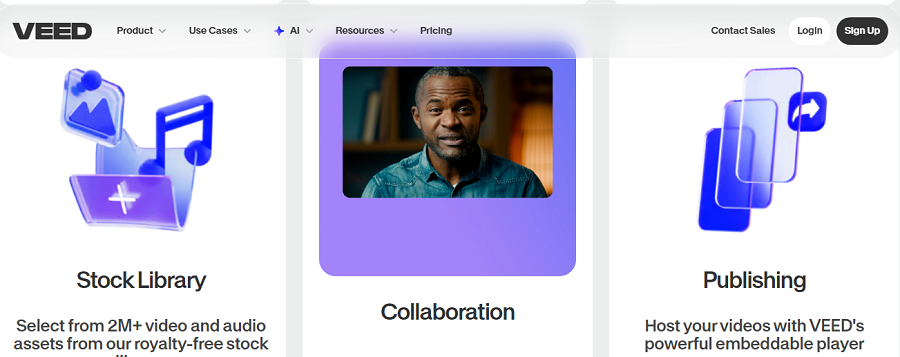
VEED.io is a browser-based video editor with strong AI tools for creators and teams. It focuses on automatic captioning, translations, text-to-speech, AI avatars, and Magic Cut for extracting highlights. Designed for online collaboration and social content.
Features of VEED.io
- Auto Subtitles & Translations: Automatically generates captions and translates into multiple languages.
- AI Dubbing & Voice Cloning: Replace or generate voiceovers with AI voices.
- Magic Cut: Extract key highlights or short segments from longer videos.
- Text-to-Video AI Tools: Generate video segments using text prompts.
- Brand Kit & Templates: Apply consistent brand colors, logos, and prebuilt templates.
- Cloud Collaboration: Share, comment, and co-edit videos in real-time.
- Screen & Webcam Recording: Capture presentations or live commentary directly in-browser.
Pricing of VEED.io
| Plan | Price |
| Free | $0 (limited, watermark) |
| Pro | ~$19–$49/mo (tiered AI credits and features) |
| Enterprise | Custom |
Pros of VEED.io
✅ Comprehensive AI feature set for captions, dubbing, and video creation
✅ Cloud-based, browser-first collaboration
✅ Ideal for social and marketing teams
Cons of VEED.io
❌ Performance can lag with long videos
❌ AI features are limited by the credit system
9. Clipchamp
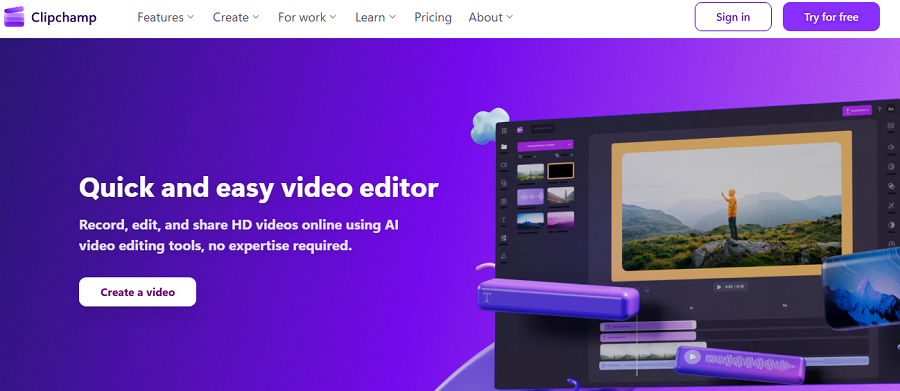
Clipchamp, owned by Microsoft, is a browser-first editor integrated with Microsoft 365. It emphasizes ease-of-use with AI features like background removal, auto-subtitles, and template-driven editing.
Features of Clipchamp
- Timeline Editing & Templates: Simple drag-and-drop editing and prebuilt templates.
- Background Removal: AI-powered background removal for green-screen alternatives.
- Stock Media Access: Access premium stock video, audio, and images (premium tiers).
- Auto Subtitles: Generate subtitles quickly using speech-to-text AI.
- Integration with Microsoft 365: Seamless use with PowerPoint, Teams, and OneDrive.
- Export Options: HD exports for social platforms, direct sharing to cloud storage.
Pricing of Clipchamp
| Plan | Price |
| Free | $0 (basic, HD exports, watermark-free) |
| Premium / Microsoft 365 | Varies by subscription |
Pros of Clipchamp
✅ Good integration for Microsoft ecosystem users
✅ Simple and beginner-friendly
✅ Cloud-based, no heavy hardware needed
Cons of Clipchamp
❌ Not as feature-rich as full NLEs for complex edits
❌ AI features are mostly tied to a subscription or a Microsoft 365 plan
10. Kapwing
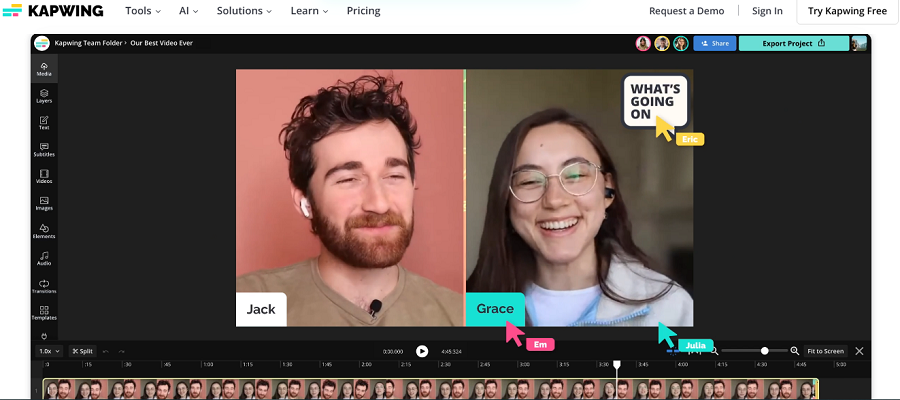
Kapwing is a browser-based collaborative editor with AI-powered features including subtitle generation, translation, text-to-video, and image/video creation. It’s ideal for teams repurposing content quickly.
Features of Kapwing
- Auto Subtitles & Translations: Generate captions and translate videos into multiple languages.
- Text-to-Video Generation: Convert scripts or prompts into short video clips.
- AI Image/Video Tools: Generate visuals or modify media using AI.
- Collaboration Tools: Shared workspace for teams to edit and comment.
- Templates & Brand Kits: Standardized templates and branding for marketing content.
- Export Options: Download or share directly to social media platforms.
Pricing of Kapwing
| Plan | Price |
| Free | $0 (limited, watermarks) |
| Pro | ~$16–$24/mo |
| Business | ~$50/mo (team-focused features) |
Pros of Kapwing
✅ Collaborative browser-first editing
✅ Lots of small AI tools for quick content creation
✅ Template library speeds up workflow
Cons of Kapwing
❌ Watermarks and credit limits on the free plan
❌ Browser performance may lag on large files
✂️ AI Tools for Dialogue, Podcast, and Repurposing
Sometimes, you need to cut talking-head videos, podcasts, and interviews. In this case, you have to use the following AI video tools:
11. Descript
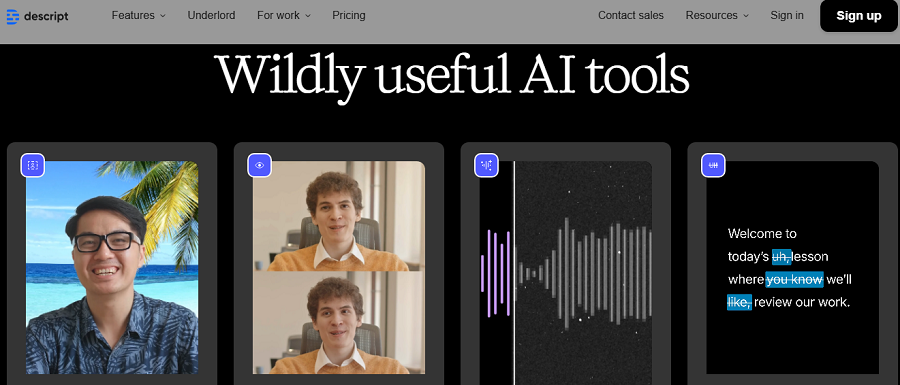
Descript is a text-first audio and video editor built for spoken-word workflows, podcasts, and interviews. Edit the transcript to edit audio/video, with AI features like overdub, filler removal, captions, and remote recording.
Features of Descript
- Text-Based Editing: Edit the transcript to edit both video and audio.
- AI Overdub: Clone your voice for correcting mistakes or adding lines.
- Filler Word Removal: Automatically remove “um,” “uh,” and other filler words.
- Multitrack Editing: Combine multiple video, screen, and audio tracks.
- Studio Sound: AI-enhanced voice cleanup for professional quality.
- Screen Recording: Capture tutorials or live presentations.
- Instant Captions: Auto-generate captions for accessibility.
- Collaboration: Real-time commenting and co-editing for teams.
Pricing of Descript
| Plan | Price |
| Free | $0 (limited minutes) |
| Creator | ~$15/mo |
| Pro / Business | ~$30–$65+/mo |
Pros of Descript
✅ Extremely fast for spoken-word content
✅ Overdub and filler removal save editing time
✅ Great for teams and collaboration
Cons of Descript
❌ Limited visual editing capabilities
❌ Overdub requires setup and voice consent
12. TimeBolt
TimeBolt automates the removal of silences and filler words from long-form videos, designed for podcasters, lecturers, and talk-heavy content. (timebolt.com)
Features of TimeBolt
- Silence Detection: Automatically detect and remove silent sections.
- Uncheck Filler Removal: AI identifies filler words for removal.
- Batch Processing: Apply edits to multiple clips at once.
- Export to NLEs: Export to XML or SRT for integration with other editors.
- Waveform Preview: Visual representation to fine-tune automatic cuts.
Pricing of TimeBolt
| Plan | Price |
| Free | $0 (limited/minutes) |
| Pro | ~$17/mo or $97/yr |
Pros of TimeBolt
✅ Very fast for long-form spoken content
✅ Reduces manual editing significantly
✅ Lightweight and easy to use
Cons of TimeBolt
❌ Not a full-featured video editor
❌ Some advanced features are pay-per-use
13. Opus Clip
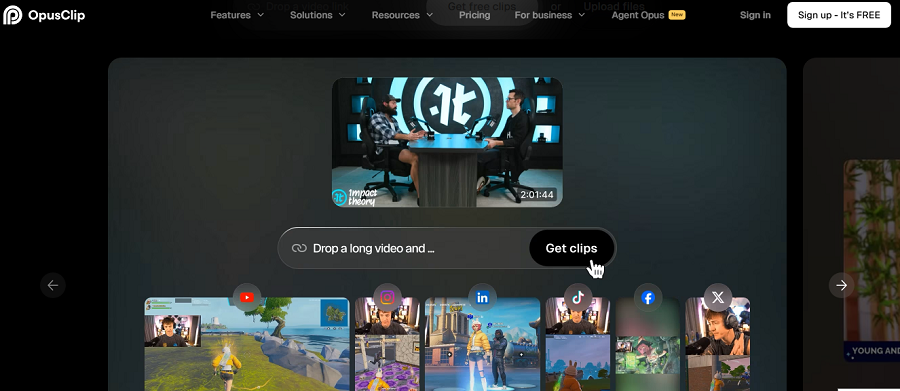
Opus Clip automatically converts long videos (webinars, podcasts) into short clips for social media. It uses AI to detect key moments, add captions, and optimize for platforms.
Features of Opus Clip
- Auto-Clipping: Extract highlights from long videos automatically.
- Smart Captions: Generate captions synced to video segments.
- Emoji & Keyword Highlighting: Add visual markers to key moments.
- Auto Reframe & Crop: Adjust clips for different aspect ratios.
- Batch Export: Quickly produce multiple short clips from one source video.
Pricing of Opus Clip
| Plan | Price |
| Free | $0 (limited exports, watermark) |
| Starter | ~$15/mo |
| Pro | ~$29/mo |
| Business | Custom |
Pros of Opus Clip
✅ Speeds up content repurposing
✅ Batch exports save time for multiple platforms
✅ AI highlights and captions are accurate
Cons of Opus Clip
❌ Export limits and watermarks on the free tier
❌ Less control over precise visual edits
14. Wisecut
Wisecut is an AI video editor focusing on spoken-word content. It automatically removes silences, applies smart framing, generates captions, and provides storyboard editing for efficient video creation. (wisecut.video)
Features of Wisecut
- Silence & Filler Removal: Auto-cut pauses and filler words.
- Auto Zoom / Smart Framing: Keeps the speaker centered and engaged.
- Storyboard Editing: Organize video by transcript and highlight structure.
- Captions & Subtitles: Auto-generated and editable captions.
- Social Publishing Tools: Schedule and export videos optimized for social platforms.
Pricing of Wisecut
| Plan | Price |
| Free | $0 (limited usage) |
| Starter | ~$15–$23/mo |
| Professional | ~$57–$83/mo |
Pros of Wisecut
✅ Excellent for talking-head or lecture videos
✅ Auto zoom keeps videos visually engaging
✅ Transcript-based storyboard simplifies editing
Cons of Wisecut
❌ Limited export minutes in lower tiers
❌ Not suitable for complex visual edits
🧠 Top Generative & Text-to-Video Tools
Finally, if you want to create videos from text prompts or scripts using AI, you can use the following AI video editors:
15. Runway ML
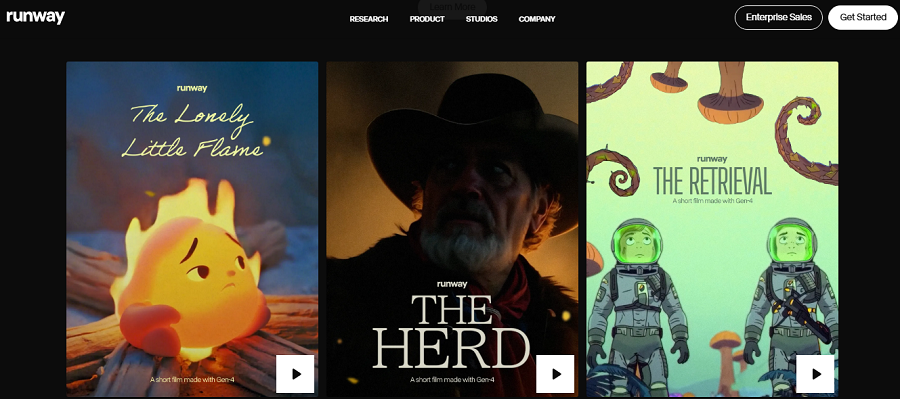
Runway ML is a generative AI video and image editor that allows creators to generate, edit, and manipulate video content using AI models. It includes text-to-video, video inpainting, background removal, and style transfer tools, making it ideal for experimental and creative workflows.
Features of Runway ML
- Text-to-Video (Gen-2/Gen-4): Create video clips from text prompts using generative AI.
- Video Inpainting & Replacement: Replace objects or backgrounds in existing footage.
- Real-Time Green-Screen Removal: Automatically remove backgrounds without a physical green screen.
- Motion Tracking: Track objects and apply effects or replacements accurately.
- Style Transfer: Apply artistic styles to video or images.
- AI Audio/Visual Generation: Generate sounds, effects, and imagery using AI.
- Collaborative Workspace: Team editing and project sharing in a cloud environment.
Pricing of Runway ML
| Plan | Price |
| Free | $0 (limited credits, watermarks) |
| Standard | ~$12–$15/mo (credits & higher resolution) |
| Pro | ~$28/mo (more credits, 4K exports) |
| Unlimited | ~$76/mo (unlimited generation) |
Pros of Runway ML
✅ Cutting-edge generative AI tools for video creation
✅ Real-time inpainting, object removal, and style transfer
✅ Cloud-based collaboration for teams
Cons of Runway ML
❌ The credit system can become expensive with heavy usage
❌ AI output quality may vary depending on complexity
16. Synthesia
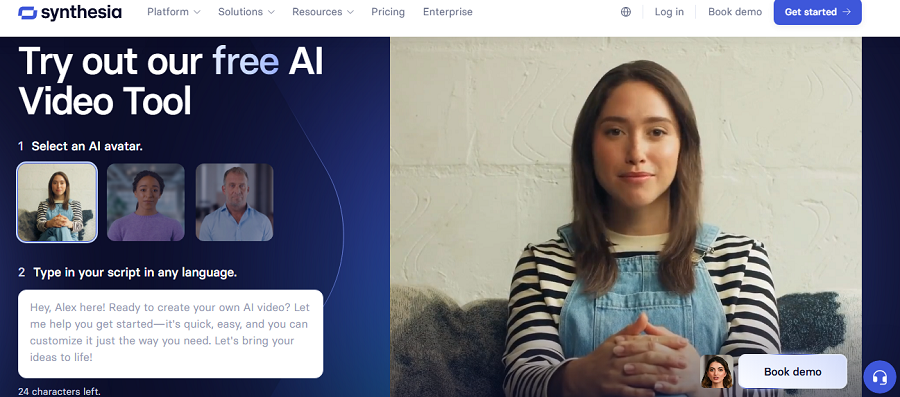
Synthesia is an AI video generator focused on creating talking-head videos using avatars. It supports multilingual dubbing, text-to-video generation, and is widely used in corporate training, e-learning, and marketing videos.
Features of Synthesia
- Text-to-Video with Avatars: Generate videos using AI avatars from written scripts.
- Multilingual Support: Over 140 languages supported for voice and subtitles.
- Custom Avatar Creation: Create personalized avatars from photos.
- Auto Captions & Translation: Generate captions and translate into multiple languages.
- SCORM Export: Export videos for LMS and e-learning platforms.
- Template Workflow: Prebuilt templates for marketing, tutorials, or training videos.
Pricing of Synthesia
| Plan | Price |
| Free | $0 (trial) |
| Starter | ~$18–$29/mo (limited video minutes) |
| Creator/Business | ~$64+/mo or custom enterprise |
Pros of Synthesia
✅ Fast generation of talking-head videos
✅ Excellent language and localization support
✅ Easy template-driven workflow
Cons of Synthesia
❌ Avatar realism is limited for some contexts
❌ Pricing scales with video minutes and enterprise needs
17. Pictory
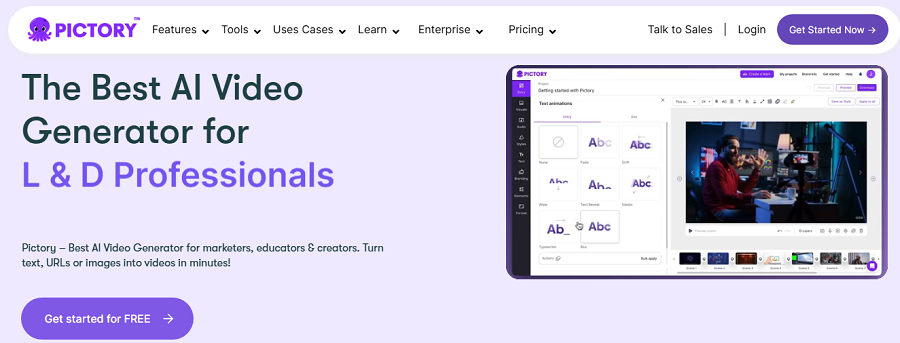
Pictory transforms text, scripts, or long videos into short social media clips automatically. It leverages AI to highlight key moments, add captions, and integrate stock visuals.
Features of Pictory
- Script/Text-to-Video: Automatically convert blog posts, scripts, or articles into videos.
- Auto Scene Selection: Detects important parts of content and creates engaging clips.
- Auto Captions & Voiceovers: Generate captions and AI voiceovers.
- Stock Media Integration: Access images, videos, and music for content enrichment.
- Long-Form to Short-Form Repurposing: Quickly produce short clips from webinars or long recordings.
- API for Automation: Integrate AI video creation into workflows programmatically.
Pricing of Pictory
| Plan | Price |
| Free Trial | 14 days |
| Starter | ~$19/mo |
| Professional | ~$29/mo |
| Enterprise | Custom |
Pros of Pictory
✅ Quickly converts long-form content to engaging short clips
✅ Stock media and voiceovers simplify production
✅ Automation saves time for social media teams
Cons of Pictory
❌ Output can be generic without manual editing
❌ Limits on video minutes or credits in lower plans
18. InVideo
InVideo is an AI-assisted online video editor for marketers and social media teams. It provides templates, text-to-video, AI-assisted storyboard creation, and stock media integration.
Features of InVideo
- Template Library: Ready-to-use templates for social, ads, and presentations.
- Text-to-Video AI Tools: Generate videos from scripts or prompts.
- AI Script & Storyboard Assistance: AI helps outline and plan video sequences.
- Stock Media Library: Access images, videos, and music.
- Voice Cloning & AI Avatars: Generate voiceovers and AI characters.
- Team Collaboration: Share, comment, and co-edit projects.
- Export Presets: Optimized outputs for different platforms.
Pricing of InVideo
| Plan | Price |
| Free | $0 (watermarks, limits) |
| Plus / Studio | ~$25–$60/mo (tiered AI minutes) |
| Enterprise | Custom |
Pros of InVideo
✅ Strong template-driven editor for marketers
✅ Generative AI features help speed production
✅ Collaboration tools for teams
Cons of InVideo
❌ AI output limited by minutes or plan tier
❌ Some outputs require manual tweaks to avoid a generic look
19. Elai.io
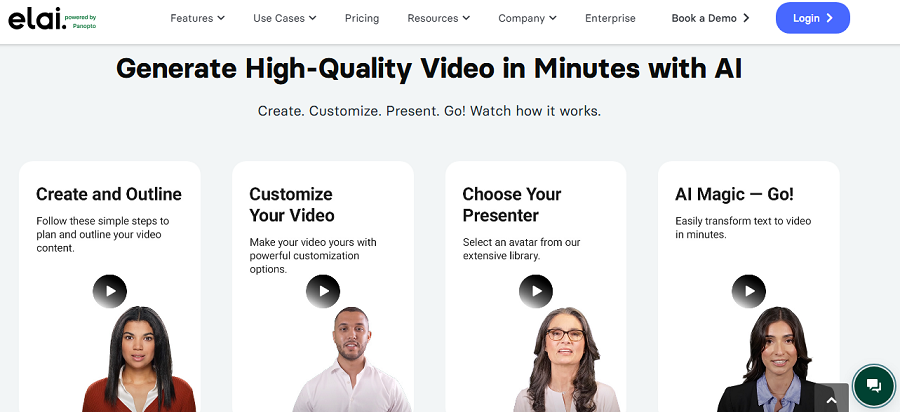
Elai.io is an AI video generator focused on training, e-learning, and corporate video production. It supports AI avatars, text-to-video, multilingual voiceovers, and interactive elements like quizzes and SCORM export.
Features of Elai.io
- Text-to-Video with AI Avatars: Create video content from text using prebuilt or custom avatars.
- Custom Avatar Creation: Generate personalized avatars from selfies or studio images.
- Multilingual TTS & Voice Cloning: Generate voiceovers in multiple languages.
- Interactive Videos & SCORM Export: Add quizzes, slides, and interactive elements.
- Slide/PPTX Import: Convert presentation slides into AI-generated videos.
- Team & Enterprise Management: Admin controls, user management, and collaboration tools.
Pricing of Elai.io
| Plan | Price |
| Free | $0 (1 min/video, limited features) |
| Creator | ~$23–$29/mo (15 mins/mo) |
| Team | ~$100–$125/mo (50 mins/mo) |
| Enterprise | Custom |
Pros of Elai.io
✅ Excellent for training and educational content
✅ Avatar + SCORM and interactivity support
✅ Supports multilingual corporate content
Cons of Elai.io
❌ Custom avatars add extra cost
❌ Pricing tied to minutes — can escalate for large-scale projects
20. Designs.ai
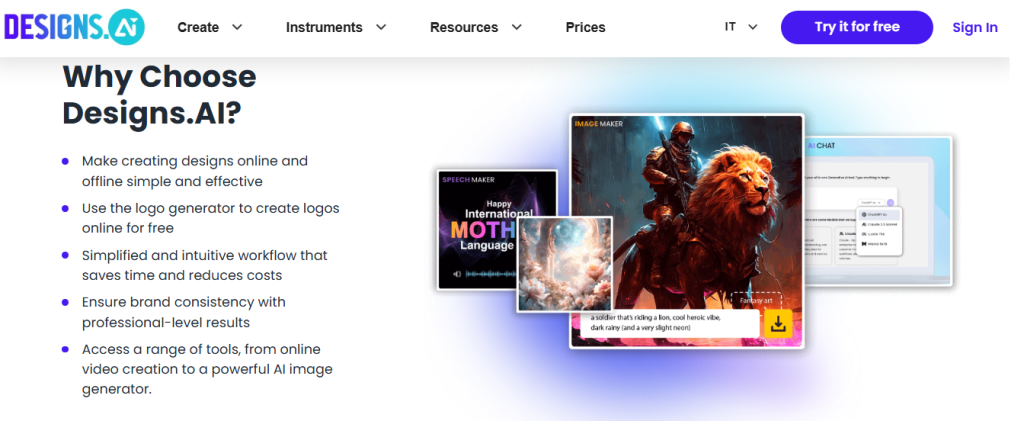
Designs.ai is a creative AI suite with a Videomaker tool for generating videos from text. It integrates video, audio, and stock assets in one workflow, targeting marketers who want fast, branded content. (designs.ai)
Features of Designs.ai
- Text-to-Video: Automatically create videos from text or scripts.
- Auto Scene Selection: AI detects key moments and transitions.
- AI Narration & Voice Generator: Add natural-sounding voiceovers automatically.
- Stock Assets & Templates: Access images, video clips, and music.
- Brand Kit Integration: Apply company colors, fonts, and logo automatically.
- Social Media Export: Optimized outputs for platforms like Instagram, YouTube, and TikTok.
Pricing of Designs.ai
| Plan | Price |
| Basic | ~$19/mo (annual $228) |
| Pro | ~$49/mo (annual $588) |
| Enterprise | ~$169/mo (annual) |
Pros of Designs.ai
✅ Integrated workflow for design, voice, and video
✅ Quick production of branded marketing videos
✅ Access to stock assets and templates
Cons of Designs.ai
❌ Videomaker is template-heavy — limited creative control
❌ Less suitable for cinematic or complex visual projects
Tips for Using AI Tools in Video Editing
AI video editors are powerful, but like any tool, they work best when used strategically. Here are some practical tips to get the most out of AI features:
1. Start with a Clear Script or Outline
Even the best AI tools produce better results when they have structured input. Writing a script or storyboard before using text-to-video or auto-editing features ensures the final video is coherent and polished.
2. Use AI to Save Time, Not Replace Creativity
AI can speed up repetitive tasks like cutting silences, adding captions, or generating rough edits. However, human judgment is still key for pacing, tone, and storytelling. Always review AI edits and refine them for a professional finish.
3. Leverage Multiple AI Features Together
Combine tools like auto-subtitles, voiceover generation, and background removal in one workflow. For example, you can create a talking-head video with AI avatars, add captions automatically, and repurpose it for multiple platforms — all with minimal manual effort.
4. Check AI Accuracy & Output Quality
AI-generated content can sometimes misinterpret text, captions, or scene boundaries. Always proofread captions, voiceovers, and auto-edits to catch errors before publishing.
5. Keep Files Organized
AI editors can generate multiple versions, drafts, or clips quickly. Maintain a clear folder structure and version naming system to avoid confusion and streamline collaboration.
6. Use Templates and Presets Wisely
Templates, AI-generated transitions, and preset styles save time, but don’t rely on them exclusively. Customize them to match your brand, tone, and style for a unique look.
7. Experiment and Learn
AI tools evolve rapidly. Experiment with new features like generative video extensions, style transfers, or voice cloning. Over time, you’ll discover shortcuts and workflows that best suit your content type.
8. Balance Automation with Human Touch
AI can handle many technical tasks, but storytelling, emotion, and pacing still require human intuition. Combine AI efficiency with creative judgment for the best results.
Conclusion
AI video editors are transforming how individuals and businesses create video content. What once required expensive equipment, large teams, and hours of manual editing can now be done in minutes, often with just a few clicks.
Whether you’re a solo creator producing short-form clips, a marketer crafting branded videos, or a professional editor working on cinematic projects, there’s an AI tool designed to fit your workflow and budget.
The key is to view AI not as a replacement for creativity, but as a creative partner that amplifies your ideas. These tools can take care of the repetitive, time-consuming tasks, cutting silences, generating captions, or even producing visuals from text, so you can focus on storytelling, strategy, and connection with your audience.
As we move through 2025, the gap between imagination and execution is shrinking faster than ever. With the right AI video editor, you don’t need a big studio to make big stories, just a vision, a message, and the willingness to explore what these new tools can do.
So, pick a tool that suits your needs, experiment boldly, and start creating videos that truly capture attention and inspire action. The future of video editing isn’t coming; it’s already here.
FAQs
I-driven tools will make editing faster, more intuitive, and accessible to creators of all skill levels.
AI will assist editors but won’t fully replace the creativity and judgment of human editors.
Yes, AI tools can automate tasks like cutting, color grading, subtitles, and effects.
Yes, demand is growing as businesses and creators need polished videos for marketing and social media.