

Spotify is one of the most famous music streaming platforms in the world. It offers its services on all devices and operating systems, including a web player accessible from any browser.
In this blog post, we’ll explain how you can use Spotify Web Player. Also, we’ll introduce some alternatives to Spotify to help you find your desired music player.
What Is Spotify?
Before diving into the Web Player itself, it helps to zoom out and understand the larger ecosystem it belongs to. Spotify isn’t just a streaming service; it’s arguably the platform that set the tone for modern music consumption.
It introduced millions of people to the idea that music could be both limitless and instantly available, and it did this at a time when streaming was still a fringe concept. Instead of worrying about file storage, users could explore virtually any genre with a few clicks.
That sense of abundance and the ease of discovering new artists became a defining trait.
Under the hood, Spotify operates like a giant catalog paired with a sophisticated recommendation engine.
Every time you listen, skip, like, replay, or follow an artist, Spotify uses that data to refine your personalized suggestions. That’s one of the reasons users stick around: it becomes a deeply personal space that adapts to your tastes in a way that traditional radio or MP3 libraries never could.
Another aspect that sets Spotify apart is its audience. It isn’t built solely for audiophiles or mainstream Top-40 listeners.
It captures a wide spectrum: students discovering old classics, professionals wanting background music for productivity, podcast-hungry commuters, and even niche music enthusiasts who chase down obscure tracks.
Spotify created an environment where all of these listeners can coexist, and that diversity is part of its ongoing popularity.
Supported Devices
Spotify supports all types of devices and operating systems:
| Device Type | Supported Platforms | Notes |
|---|---|---|
| Smartphones | iOS, Android | Full app functionality |
| Tablets | iPadOS, Android | Same as smartphones |
| Desktop Computers | Windows, macOS, Linux (via Web Player), ChromeOS | Desktop app recommended for offline use |
| Web Browsers | Chrome, Firefox, Edge, Safari | Full Web Player experience |
| Smart Speakers | Amazon Echo, Google Nest, Sonos, select smart TVs | Spotify Connect is required for multi-device control |
| Wearables | Apple Watch, WearOS watches | Limited playback controls |
| Consoles | PlayStation, Xbox | App available, integrates with Spotify account |
| Car Systems | Android Auto, Apple CarPlay, and built-in infotainment systems | Playback via app or Spotify Connect |
Pricing & Subscription Plans
Spotify offers a diverse set of pricing packages:
| Plan | Price (Typical) | Key Features |
| Free | $0 | Ad-supported, limited mobile controls, no offline downloads |
| Premium Individual | ~$10/month | Ad-free, offline downloads, higher audio quality, unlimited skips |
| Premium Duo | ~$13/month | Two users, Duo Mix playlist, same Premium perks |
| Premium Family | ~$16/month | Up to 6 accounts, parental controls, shared playlists |
| Premium Student | ~$5/month | Discounted Premium perks for verified students |
Features Offered by Spotify?
Here is what you get when using Spotify:
1. Vast and Diverse Music Library
Spotify’s music catalog is one of its biggest draws. With access to millions of tracks across virtually every genre, era, and culture, the platform offers an almost overwhelming level of choice.
Whether you’re exploring nostalgic classics, niche underground artists, or the latest global hits, the library is designed to make discovery feel effortless. It’s constantly expanding, too, with new releases appearing the moment they go live.
2. Personalized Playlists and Library Tools
The playlist system is the emotional core of Spotify. Users can create playlists for any mood, event, or personal moment, and the platform encourages this kind of customization.
Every playlist becomes a small universe, one you can grow over time with new tracks, custom artwork, and descriptions.
Spotify also keeps your library tidy with intuitive sorting tools and the ability to save full albums, follow artists, and organize your listening in a deeply personal way.
3. Extensive Podcast Collection
Spotify has evolved far beyond a simple music player. Its podcast section includes everything from comedy and true crime to educational shows and exclusive original productions.
You can follow shows, bookmark episodes for later, and switch between podcast listening and music seamlessly. For many users, Spotify doubles as both an entertainment app and an ongoing learning hub.
4. Smart Discovery and Recommendation Algorithms
At the heart of Spotify’s appeal is its uncanny ability to recommend music you’ll actually enjoy. Features like Discover Weekly, Release Radar, and Daily Mixes feel tailor-made because they are; the platform studies your listening habits and adapts continuously.
This discovery engine helps you break out of repetitive patterns and stumble onto artists or genres you may never have found on your own.
5. Cross-Device Syncing and Cloud-Based Listening
One of Spotify’s modern conveniences is the way it syncs across devices. You can start a playlist on your laptop, continue it on your phone, and finish on a smart speaker without missing a beat.
The Web Player in particular benefits from this syncing, since you can pick up your listening session anywhere you can open a browser. It feels like your music follows you rather than the other way around.
6. Social and Sharing Features
Spotify treats music as a social experience. You can follow friends, share playlists through direct links, and even collaborate on shared playlists that evolve over time.
Some users treat these collaborative playlists like living mixtapes, an ongoing conversation in the form of music. The platform also integrates smoothly with social networks, making it easy to share what you’re listening to with others.
7. Curated Editorial Content
Beyond algorithms, Spotify employs real humans to craft editorial playlists and themed collections.
These playlists often capture cultural moments, summer vibes, holiday seasons, trending genres, or artist spotlights.
The combination of human curation and machine learning gives listeners a balanced blend of discovery paths.
Pros and Cons of Spotify
Here are the advantages and drawbacks of Spotify:
Pros of Spotify
- Intuitive user experience that makes it easy for beginners and long-time listeners to navigate, build playlists, and explore new content without feeling overwhelmed.
- Extensive music and podcast library, offering a wide range of genres, generations, and exclusive shows that keep the platform engaging for all types of listeners.
- Powerful discovery algorithms that adapt to your tastes, surfacing new artists and personalized playlists like Discover Weekly and Release Radar that often feel uncannily accurate.
- Flexible pricing structure, including a generous free tier and affordable premium plans that unlock offline listening, ad-free playback, and higher-quality streaming.
- Cross-device syncing that lets you switch from your laptop to your phone or smart speaker almost instantly, creating a seamless listening experience.
- Strong social features, such as collaborative playlists and easy sharing options, make music feel communal rather than isolated.
Cons of Spotify
- Audio quality limitations compared to services that offer true lossless or high-resolution streaming make Spotify less appealing to users with audiophile-level expectations.
- Occasional content gaps caused by licensing restrictions which can result in certain artists or albums being unavailable at times.
- The Web Player’s dependency on browser support means that playback can be affected by DRM settings, ad blockers, or company firewalls.
- Algorithmic influence on listening habits, which, while convenient, can sometimes create a feedback loop that narrows a user’s exposure to unfamiliar genres.
- Inconsistent rollout of promised features, such as long-anticipated upgrades to audio quality that have been delayed or repeatedly shifted.
How to Use Spotify Web Player: Step-by-Step Guide
Here is how you can use the web version of Spotify to listen to your music:
Step 1: Access the Web Player
Getting started with Spotify Web Player is refreshingly simple. You don’t need to install anything, just open your favorite browser, whether that’s Chrome, Firefox, Safari, or Edge, and navigate to the Spotify Web Player URL.
The login screen will appear almost instantly, mirroring the familiar design of the desktop app. Enter your credentials, and within seconds, you’re transported into a world of music and podcasts ready to stream.
Step 2: Explore the Homepage
Once you log in, the homepage acts as your central hub. It’s personalized to reflect your listening habits, with recently played albums, playlists curated for you, and trending tracks. This is where discovery begins organically.
You can scroll through these suggestions, click on anything that catches your eye, and start listening immediately. The homepage blends past preferences with new recommendations, making it both familiar and fresh every time you open it.
Step 3: Navigate the Menu
On the left-hand side of the Web Player, you’ll find the main navigation menu. Here you can access your Library, playlists, and search bar.
The search function is powerful; you can type in artists, song titles, albums, genres, or even a lyric snippet.
Spotify quickly organizes results into categories, making it effortless to find exactly what you’re looking for. The menu also lets you jump to curated playlists, your own playlists, or collaborative playlists shared with friends.
Step 4: Manage and Create Playlists
Playlists are the heartbeat of Spotify, and the Web Player makes them easy to manage. When you open a playlist, you can see every track and interact with it directly.
Adding songs to a playlist is intuitive; you can drag and drop tracks, or right-click any song across the platform and select “Add to Playlist.”
Creating a new playlist lets you name it, write a description, and even upload a custom cover image. The flexibility ensures your playlists become a personal soundtrack for every mood and occasion.
Step 5: Control Playback
Playback controls reside at the bottom of the screen, offering all the functionality you’d expect: play, pause, skip, repeat, shuffle, volume adjustments, and device switching.
Using the “Connect to a device” option, you can seamlessly transfer playback to a different speaker, smartphone, or tablet without interrupting the music. This cross-device flexibility is one of Spotify Web Player’s standout features.
Step 6: Adjust Settings
Settings are tucked into your profile menu, where you can fine-tune playback quality, toggle explicit content filters, update account information, or manage privacy settings.
While the Web Player’s settings aren’t as exhaustive as the desktop app, they cover the essentials and allow you to customize your listening experience to match your preferences.
Step 7: Troubleshoot Common Issues
Occasionally, you may encounter playback hiccups or errors. Most of these are browser-related, such as cookies, DRM restrictions, or ad blockers interfering with streaming.
Clearing cookies, enabling protected content, or switching browsers usually resolves the problem.
If you’re on the free tier, make sure ad blockers aren’t active, as Spotify may prevent playback if it detects them. Once these minor issues are addressed, the Web Player runs smoothly.
Best Alternatives to Spotify Web Player
Last but not least, if you’re looking for something different, you can choose another music streaming tool from the list below:
1. Deezer
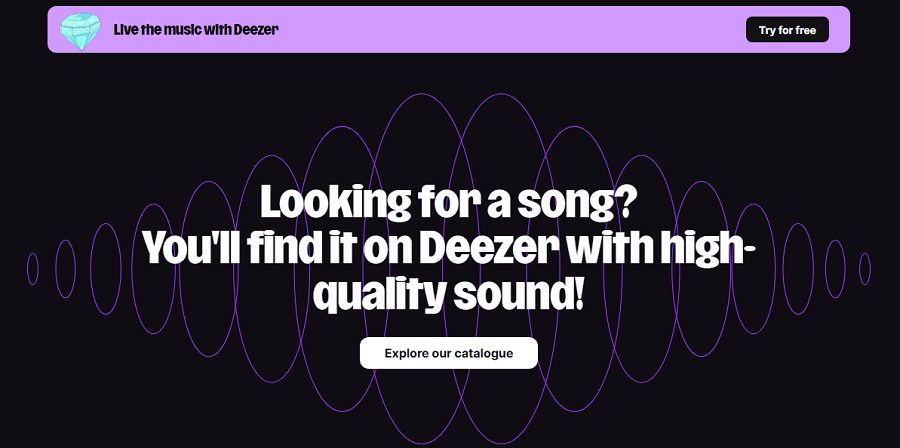
Deezer is a long-running music streaming service known for its broad international catalog and its Flow feature, which generates endless personalized mixes. It supports high-fidelity audio options and integrates well with a variety of smart devices.
Features of Deezer
- Extensive global music catalog
- High-resolution audio (HiFi)
- Flow personalized mix engine
- Lyrics display
- Cross-device syncing
- Offline listening (paid plans)
- Smart speaker and in-car integrations
Pricing of Deezer
| Plan | Price | Notes |
| Free | $0/mo | Ad-supported, limited skips |
| Premium | ~$10.99/mo | No ads, offline listening |
| Family | ~$17.99/mo | Up to 6 profiles |
| HiFi | ~$14.99/mo | Lossless FLAC streaming |
Pros of Deezer
✔️ Large global catalog
✔️ HiFi lossless audio option
✔️ Strong personalization engine
✔️ Broad device compatibility
Cons of Deezer
✘ Smaller user community compared to big competitors
✘ Interface varies in polish across regions
2. YouTube Music

YouTube Music stands out with its ability to combine official songs, live sessions, remixes, user-generated content, and the entire YouTube ecosystem. It’s ideal for listeners who enjoy unofficial recordings and deep-cut tracks.
Features of YouTube Music
- Access to official songs and YouTube content
- Smart search (lyrics, descriptions, vague queries)
- Personalized mixes and mood playlists
- Audio/video switching
- Offline downloads (premium)
- Background play (premium)
Pricing of YouTube Music
| Plan | Price | Notes |
| Free | $0/mo | Ads, no background play |
| YouTube Music Premium | ~$10.99/mo | No ads, offline & background play |
| YouTube Premium | ~$13.99/mo | Removes all YouTube ads + Music Premium |
| Family | ~$22.99/mo | Up to 6 accounts |
Pros of YouTube Music
✔️ Huge library including rare and live recordings
✔️ Best-in-class search tools
✔️ Video-to-audio switching
✔️ Seamless integration with the YouTube ecosystem
Cons of YouTube Music
✘ The free tier is very limited
✘ Sound quality is not audiophile-focused
3. Apple Music
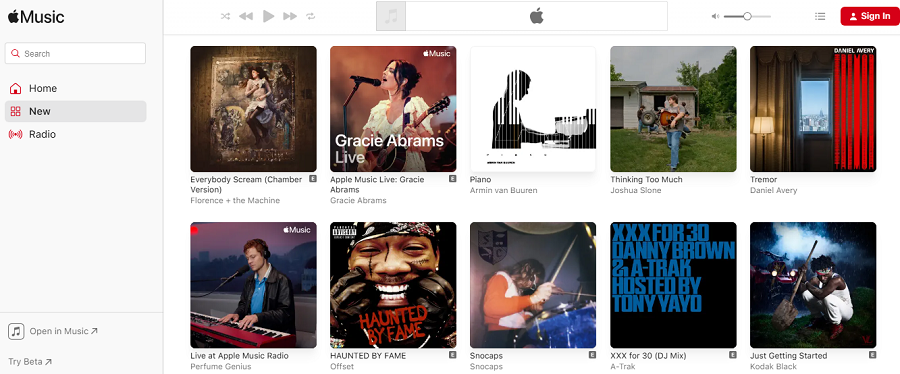
Apple Music is a full-featured streaming platform with an emphasis on high-resolution audio, curated playlists, and deep integration with the Apple ecosystem across devices and services.
Features of Apple Music
- Lossless and Hi-Res Lossless audio
- Dolby Atmos spatial audio
- Large curated playlist library
- Real-time lyrics
- Offline downloads
- iCloud syncing across Apple devices
- Live radio stations
Pricing of Apple Music
| Plan | Price | Notes |
| Voice Plan | ~$5.99/mo | Siri-only control |
| Individual | ~$10.99/mo | Full access |
| Family | ~$16.99/mo | Up to 6 users |
| Student | ~$5.99/mo | Discounted plan |
Pros of Apple Music
✔️ Exceptional sound quality (Lossless + Spatial Audio)
✔️ Highly polished interface
✔️ Deep Apple ecosystem integration
✔️ Strong editorial curation
Cons of Apple Music
✘ No free tier
✘ Best experience limited to Apple devices
4. Amazon Music
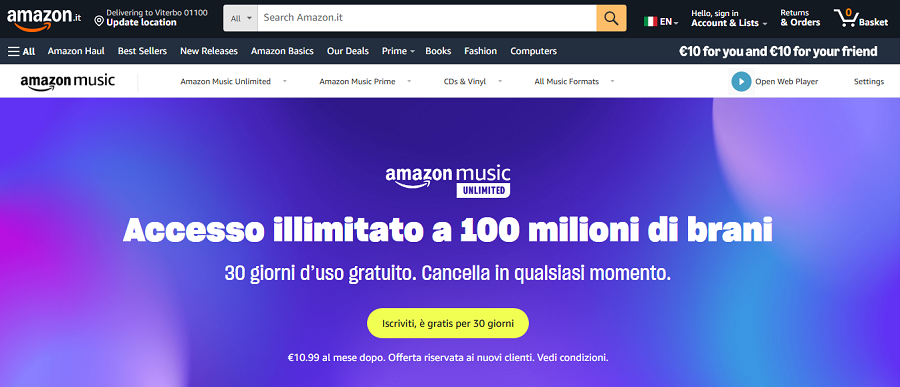
Amazon Music offers a large catalog with multiple listening tiers, including a built-in plan for Prime members. Its HD and Ultra HD plans appeal to users who want better-than-standard audio quality.
Features of Amazon Music
- HD and Ultra HD audio
- Catalog tied to Amazon Prime benefits
- Personalized recommendations
- Voice control with Alexa
- Offline listening
- Spatial audio support
Pricing of Amazon Music
| Plan | Price | Notes |
| Prime Music | Included with/ Prime | Limited catalog |
| Amazon Music Unlimited | ~$10.99/mo | Full access |
| Family | ~$17.99/mo | Up to 6 profiles |
| Single Device Plan | ~$4.99/mo | One Echo device |
| Student | ~$5.99/mo | Discounted |
Pros of Amazon Music
✔️ HD/Ultra HD audio without high fees
✔️ Great for Alexa households
✔️ Prime users get built-in benefits
✔️ Large and growing catalog
Cons of Amazon Music
✘ The interface can feel cluttered
✘ Catalog fragmentation between Prime and Unlimited
5. Tidal
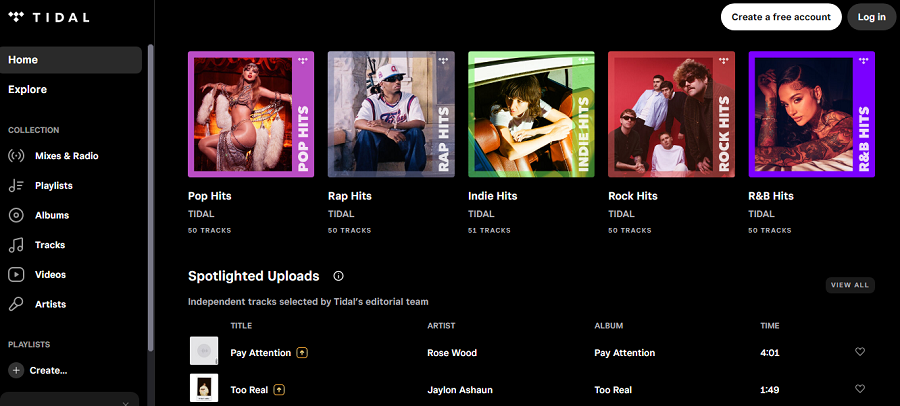
Tidal is known for its commitment to high-fidelity audio and artist-friendly philosophy. It appeals especially to audiophiles and fans of immersive sound quality formats.
Features of Tidal
- Lossless, Hi-Res, and Dolby Atmos audio
- Editorial content and exclusive releases
- Artist credits and behind-the-scenes data
- Offline mode
- Personalized mixes
- Cross-platform support
Pricing of Tidal
| Plan | Price | Notes |
| Free | $0/mo | Ads, limited audio quality |
| HiFi | ~$10.99/mo | Lossless FLAC |
| HiFi Plus | ~$19.99/mo | Hi-Res + immersive audio |
Pros of Tidal
✔️ Best-in-class sound quality
✔️ Strong transparency about artist credits
✔️ Exclusive content and releases
Cons of Tidal
✘ More expensive at the high end
✘ Smaller library than the top competitors
6. SoundCloud

SoundCloud is a unique hybrid platform that blends streaming with social creation tools. Independent artists use it as a distribution hub, making it the go-to place for discovering emerging talent.
Features of SoundCloud
- User-uploaded music
- Independent artist discovery
- Likes, comments, and reposts
- Playlist creation
- Creator tools for uploads
- Offline listening (premium)
Pricing of SoundCloud
| Plan | Price | Notes |
| Free | $0/mo | Ad-supported |
| SoundCloud Go | ~$4.99/mo | No ads, offline listening |
| SoundCloud Go+ | ~$9.99/mo | Full catalog access |
Pros of SoundCloud
✔️ Massive indie and underground library
✔️ Social interaction features
✔️ Great for discovering new creators
Cons of SoundCloud
✘ Catalog inconsistency due to user uploads
✘ Audio quality varies widely
7. Qobuz
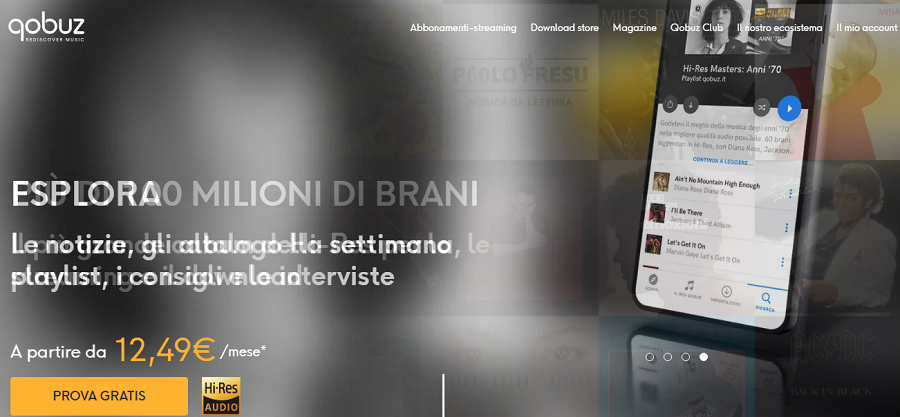
Qobuz specializes in high-resolution audio and offers a curated, boutique-like experience for users who prioritize sound quality and editorial depth. It features extensive album booklets and metadata.
Features of Qobuz
- Hi-Res audio (up to 24-bit/192 kHz)
- Large selection of audiophile-grade releases
- Album booklets and editorial notes
- Offline listening
- Music purchase store
- Cross-platform support
Pricing of Qobuz
| Plan | Price | Notes |
| Studio Solo | ~$12.99/mo | Hi-Res streaming |
| Studio Duo | ~$17.99/mo | 2 users |
| Studio Family | ~$21.90/mo | Up to 6 users |
| Sublime | Annual | Discounts on Hi-Res downloads |
Pros of Qobuz
✔️ Exceptional Hi-Res audio
✔️ Deep editorial content
✔️ Download store for ownership
Cons of Qobuz
✘ No free tier
✘ Smaller library than mainstream services
8. Pandora

Pandora pioneered personalized internet radio through its Music Genome Project, offering highly tailored stations based on user feedback. It’s ideal for people who prefer radio-style, hands-off listening.
Features of Pandora
- Radio-style stations
- Music Genome algorithm
- Thumbs-up/down personalization
- Offline mode (premium)
- Podcasts
- Cross-device syncing
Pricing of Pandora
| Plan | Price | Notes |
| Free | $0/mo | Ads, limited control |
| Pandora Plus | ~$4.99/mo | Fewer ads, offline stations |
| Pandora Premium | ~$9.99/mo | On-demand listening |
| Family | ~$14.99/mo | Up to 6 users |
Pros of Pandora
✔️ Best radio-style personalization
✔️ Simple and hands-off listening experience
✔️ Lightweight and easy to use
Cons of Pandora
✘ An on-demand library isn’t as robust
✘ Limited availability outside the U.S.
Conclusion
The Spotify Web Player is a convenient, flexible way to enjoy everything Spotify offers, without downloading a single thing. It’s the kind of tool you don’t realize you need until you start using it regularly.
Whether you’re streaming at work, exploring new playlists on a borrowed laptop, or simply prefer the light footprint of browser-based listening, the Web Player lets you carry your entire audio world with you wherever you go.
Understanding how to navigate it, how its features echo the desktop app, and how it compares to other streaming services gives you a deeper appreciation for the platform as a whole.
At its core, Spotify remains a powerful blend of personalization, discovery, and ease of use, and the Web Player ensures that you can tap into that ecosystem anytime, anywhere.
If you haven’t tried Spotify Web Player before, consider giving it a spin. You may be surprised by just how capable and liberating it feels.
FAQs
Open your browser, go to the Spotify Web Player website, log in, and start browsing, searching, and playing music or podcasts directly in your browser—no app installation needed.
Playback issues are usually caused by browser settings, ad blockers, or DRM restrictions. Try clearing cookies, enabling protected content, disabling blockers, or switching browsers.
Hover over a song, click the three dots next to it, and select “Add to Queue” to line up tracks for playback.
Click on any song, playlist, or album and press play. Use playback controls like shuffle, repeat, or skip to customize your listening session.
Open Spotify, click the Connect icon (bottom-right), and select “Start a group session” or join one via a shared invite link to listen together in real-time.
Click the shuffle icon at the bottom of the screen while playing a playlist, album, or queue to randomize the order of songs.